

Here is the short answer. To install Active Directory Domain Services, give the server its final name and a static IP, install the AD DS role (Install-WindowsFeature -Name AD-Domain-Services -IncludeManagementTools), then promote it to a domain controller with a new forest (Install-ADDSForest -DomainName corp.mouhimen.dev -InstallDns). After the restart, point every client’s DNS at the domain controller, test with nltest /dsgetdc:corp.mouhimen.dev, and join the PC. That last DNS step is the one that breaks most first joins.
Watch the video: https://youtu.be/5GZlLp7d1ac
I checked the steps, cmdlets and error messages on 16 November 2026 against Microsoft’s current documentation for Windows Server 2025 (the AD DS install guide, the functional levels page and the domain join troubleshooting articles).
What you’ll build
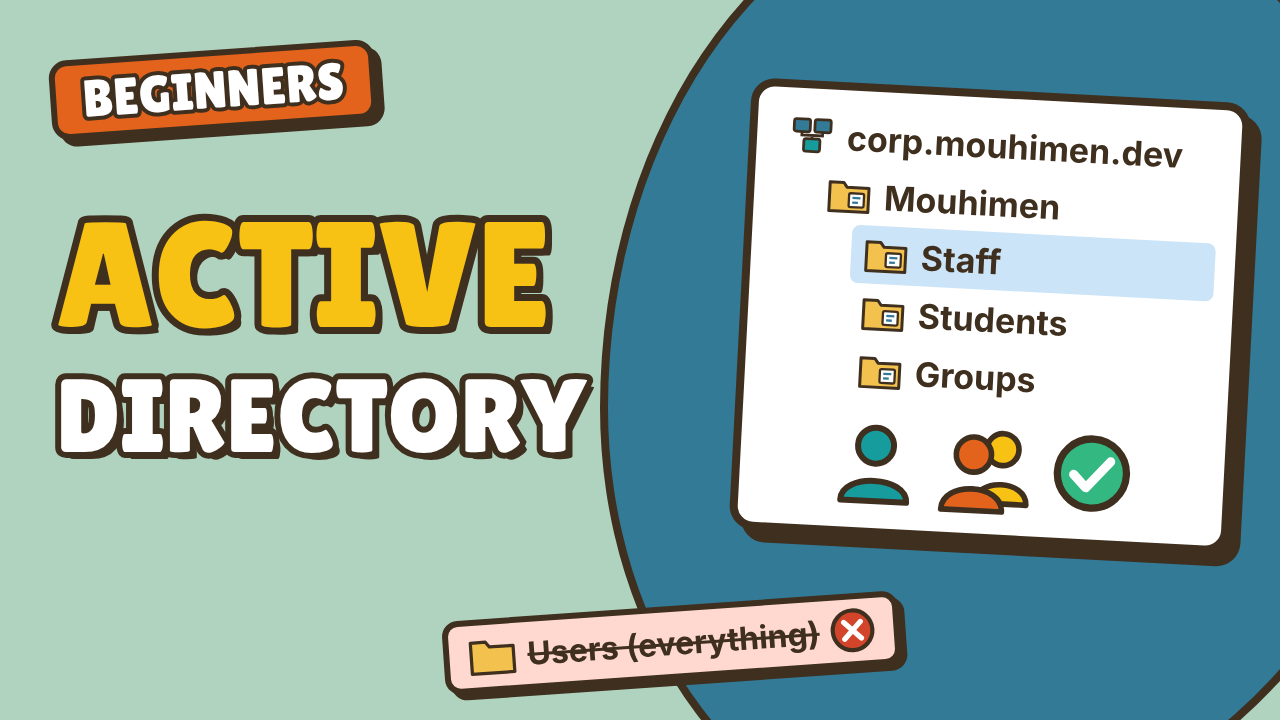
A small but real domain, the same one I use in my Active Directory tutorial for beginners:
| Machine | Role | Settings |
|---|---|---|
| DC01 | Domain controller + DNS server | Windows Server 2025, static IP 10.10.0.10/24, gateway 10.10.0.1 |
| PC01 | Client | Windows 11 Pro |
| Router | Internet + DHCP | 10.10.0.1 |
- Domain name:
corp.mouhimen.dev - NetBIOS name:
CORP - Demo user: Abd almouhimen Shamout (
abd.shamout)
Why bother with a domain? Without one, every PC has its own users and its own passwords. Ten PCs means ten places to reset a password. A domain puts every user and every computer in one database, and the server that holds that database is the domain controller (DC).
The whole job is three steps:
- Install the AD DS role.
- Promote the server to a domain controller.
- Make every client use that server for DNS.
Step 1: Prepare the server
Do these two things before you install anything.
Give it its final name. Renaming a domain controller later is a lot more work, so name it now and restart:
Rename-Computer -NewName DC01 -Restart
Give it a static IP address and point its DNS at itself. In a single-DC lab, the server will become the DNS server for the whole domain, so it uses itself (127.0.0.1):
New-NetIPAddress -InterfaceAlias Ethernet -IPAddress 10.10.0.10 -PrefixLength 24 -DefaultGateway 10.10.0.1
Set-DnsClientServerAddress -InterfaceAlias Ethernet -ServerAddresses 127.0.0.1
Your adapter may not be called Ethernet. Check the name with Get-NetAdapter.
Step 2: Install the AD DS role
With Server Manager: open Server Manager, click Manage, then Add Roles and Features. Choose Role-based or feature-based installation, pick DC01, and tick Active Directory Domain Services. When the wizard asks to add the required features, keep Include management tools ticked and click Add Features. That gives you Active Directory Users and Computers and the PowerShell module. Click Next until you reach Install.
With PowerShell:
Install-WindowsFeature -Name AD-Domain-Services -IncludeManagementTools
The output ends with Success, and Restart Needed is No.
Important: the server is not a domain controller yet. It only has the role, like software that’s installed but not set up. Microsoft’s docs also point out that PowerShell does not add the management tools unless you include -IncludeManagementTools.
Step 3: Promote the server to a domain controller
In Server Manager, click the yellow flag and choose Promote this server to a domain controller. Then:
- Deployment Configuration: choose Add a new forest and type the root domain name,
corp.mouhimen.dev. Use a subdomain of a domain you really own, not.local. - Domain Controller Options: leave the forest and domain functional levels on Windows Server 2025, keep DNS server and Global Catalog ticked, and set the DSRM (Directory Services Restore Mode) password. Store it in your password manager. You only need it on the worst day of the year.
- DNS Options: you’ll see a yellow warning that a delegation for this DNS server cannot be created. For a brand-new forest, that’s normal. Ignore it.
- Additional Options: the NetBIOS name fills in as
CORP. - Paths: keep the defaults (
C:\Windows\NTDSandC:\Windows\SYSVOL). - Prerequisites Check: wait for “All prerequisite checks passed successfully”, then click Install.
The server restarts by itself. Sign in as CORP\Administrator. DC01 is now a domain controller and a DNS server.
With PowerShell (it asks for the DSRM password, then restarts):
Install-ADDSForest -DomainName corp.mouhimen.dev -DomainNetbiosName CORP -InstallDns
After the restart, prove it worked:
Get-ADDomain | Select-Object DNSRoot, NetBIOSName, DomainMode
A note on functional levels: the Windows Server 2025 level only works when every domain controller runs Windows Server 2025. If you plan to add older DCs, choose Windows Server 2016 instead. New forests can’t go below the Windows Server 2016 level.
Step 4: Join a Windows 11 PC to the domain
First, the step people skip: DNS. On PC01, open the network adapter, then the IPv4 settings, and set:
- Preferred DNS server:
10.10.0.10(the domain controller) - Alternate DNS server: leave it empty
Test before you join:
nltest /dsgetdc:corp.mouhimen.dev
If it shows DC: \\DC01.corp.mouhimen.dev and “The command completed successfully”, the join will work.
Join the domain: open Settings > System > About and click Domain or workgroup. In System Properties, click Change, choose Domain, type corp.mouhimen.dev, and click OK. Enter an account that’s allowed to join computers (I use CORP\Administrator). You’ll see “Welcome to the corp.mouhimen.dev domain.” Restart the PC.
Back on the server, PC01 now appears in the Computers container in Active Directory Users and Computers.
With PowerShell (run on the PC as an administrator):
Add-Computer -DomainName corp.mouhimen.dev -Credential CORP\Administrator -Restart
Step 5: Log in as a domain user
On DC01, open Active Directory Users and Computers and create a user. Mine is Abd almouhimen Shamout, logon name abd.shamout, with User must change password at next logon ticked. In PowerShell:
New-ADUser -Name "Abd almouhimen Shamout" -SamAccountName abd.shamout `
  -UserPrincipalName abd.shamout@corp.mouhimen.dev `
  -AccountPassword (Read-Host -AsSecureString) `
  -ChangePasswordAtLogon $true -Enabled $true
On PC01’s sign-in screen, choose Other user and type CORP\abd.shamout. Windows asks for a new password first, then opens the desktop. Prove it’s a real domain login:
whoami
echo %LOGONSERVER%
You should see corp\abd.shamout and \\DC01.
Errors and fixes
1. “The local Administrator account password does not meet requirements”
The promotion stops at the prerequisites check: Verification of prerequisites for Domain Controller promotion failed. The new domain cannot be created because the local Administrator account password does not meet requirements. This happens a lot on cloud servers, where the local admin account has no password rule. Fix:
net user Administrator /passwordreq:yes
Then set a strong password for the local Administrator and run the check again.
2. There’s no “Domain” option on the PC
Check the edition in Settings > System > About. Windows 11 Home can’t join a domain. You need Pro, Enterprise or Education.
3. “The trust relationship between this workstation and the primary domain failed”
You’ll usually see this after restoring an old snapshot of a virtual machine. The PC’s secret computer-account password no longer matches the copy in the domain. Sign in with a local admin account and run:
Test-ComputerSecureChannel -Repair -Credential CORP\Administrator
When it returns True, sign out and sign in with the domain account again.
4. “An Active Directory Domain Controller (AD DC) for the domain could not be contacted”
This is the DNS setting from the video. The details usually say DNS name does not exist (0x0000232B RCODE_NAME_ERROR), or DNS server failure (0x0000232A), and that the query was for the SRV record _ldap._tcp.dc._msdcs.corp.mouhimen.dev.
To find a domain controller, the PC asks DNS for that special SRV record. Only your DC’s DNS knows it. If the PC asks your router, or a public server like 8.8.8.8, the answer is “that domain doesn’t exist”.
Where it hides: you fixed DNS on one PC, but the next PC gets its settings from the router’s DHCP, and the router hands out itself as the DNS server. Run ipconfig /all and look at DNS Servers. Sometimes someone also adds 8.8.8.8 as the alternate “just in case”.
The fix:
- Domain PCs use only your DC (or DCs) for DNS. No public DNS, not even as the alternate.
- Change the DNS server in the router’s DHCP settings to
10.10.0.10, so every new PC gets it automatically. (Or run DHCP on Windows Server.) - The DC forwards internet names for you, so websites still work. You can set or check forwarders in DNS Manager > DC01 > Properties > Forwarders.
- Run
nltest /dsgetdc:corp.mouhimen.devagain, then join.
For more detail, Microsoft keeps the join log at %windir%\debug\netsetup.log.
One thing I do on every domain: two DCs
I never run a domain on one domain controller. With one DC, a single dead server means nobody can sign in, and no PC can find anything by name. As soon as the first DC works, I add a second server, DC02, install the same role, and promote it into the existing domain:
Install-WindowsFeature -Name AD-Domain-Services -IncludeManagementTools
Install-ADDSDomainController -DomainName corp.mouhimen.dev -InstallDns -Credential (Get-Credential CORP\Administrator)
Then I give the clients both DCs as DNS servers (for example 10.10.0.10 and 10.10.0.11) through DHCP. Now one server can die, and nobody notices.
FAQ
Do I need to restart after installing the AD DS role?
No. Installing the role doesn’t need a restart. The promotion to a domain controller restarts the server at the end.
Should I use .local for my domain name?
No. Use a subdomain of a domain you own, like corp.mouhimen.dev or ad.yourcompany.com. It avoids name clashes and certificate problems later.
What is the DSRM password?
The Directory Services Restore Mode password. You use it to sign in to a domain controller in repair mode, for example to restore Active Directory from a backup. Keep it in a password manager.
Can Windows 11 Home join a domain?
No. You need Windows 11 Pro, Enterprise or Education.
Why does the join fail with “domain controller could not be contacted”?
Almost always DNS. The PC must use your domain controller as its only DNS server. Check ipconfig /all, fix the router’s DHCP DNS setting, and test with nltest /dsgetdc:yourdomain before you join.
Related guides
- Active Directory tutorial for beginners: users, groups and OUs (watch this next: fill your new domain the right way)
- Bulk-create AD users and M365 group licensing
- Subnetting explained: subnet mask and CIDR (from the Networking Basics series, for planning your 10.10.0.0/24 network)
Sources
- Microsoft: Install Active Directory Domain Services (Level 100)
- Microsoft: Active Directory Domain Services functional levels
- Microsoft: What’s new in Windows Server 2025
- Microsoft: Active Directory domain join troubleshooting guidance, and domain join error code 0x0000232A


Leave a Reply