

Here is the short answer. A Group Policy Object (GPO) is a box of settings that does nothing until you link it to a site, the domain or an organizational unit (OU). Create and link GPOs in Group Policy Management (gpmc.msc), put password rules in the Default Domain Policy, put everything else on an OU, then run gpupdate /force on a PC and prove it with gpresult /r. Remember one rule: user settings follow user objects, computer settings follow computer objects.
Watch the video: https://youtu.be/yROcfuy63FI
This is part 3 of my IT Admin Fix series. I checked every path, setting name and command on 23 November 2026 against Microsoft’s current documentation for Windows Server 2025 and Windows 11 (Group Policy processing, refresh interval, MS16-072 security filtering, Group Policy Preferences drive maps).
Why Group Policy?
Picture fifty PCs. You need the same screen lock on every one, so you set it by hand, and next month someone changes it back. Group Policy fixes that. You set a rule once, on the domain controller, and every computer and user in that part of Active Directory follows it, and keeps following it, because PCs re-check their policies on their own.
The lab
I use the same lab as my Active Directory Domain Services guide. No domain yet? Build it there first.
| Machine | Role |
|---|---|
| DC01 | Domain controller, Windows Server 2025, 10.10.0.10 |
| PC01 | Client, Windows 11 Pro |
- Domain:
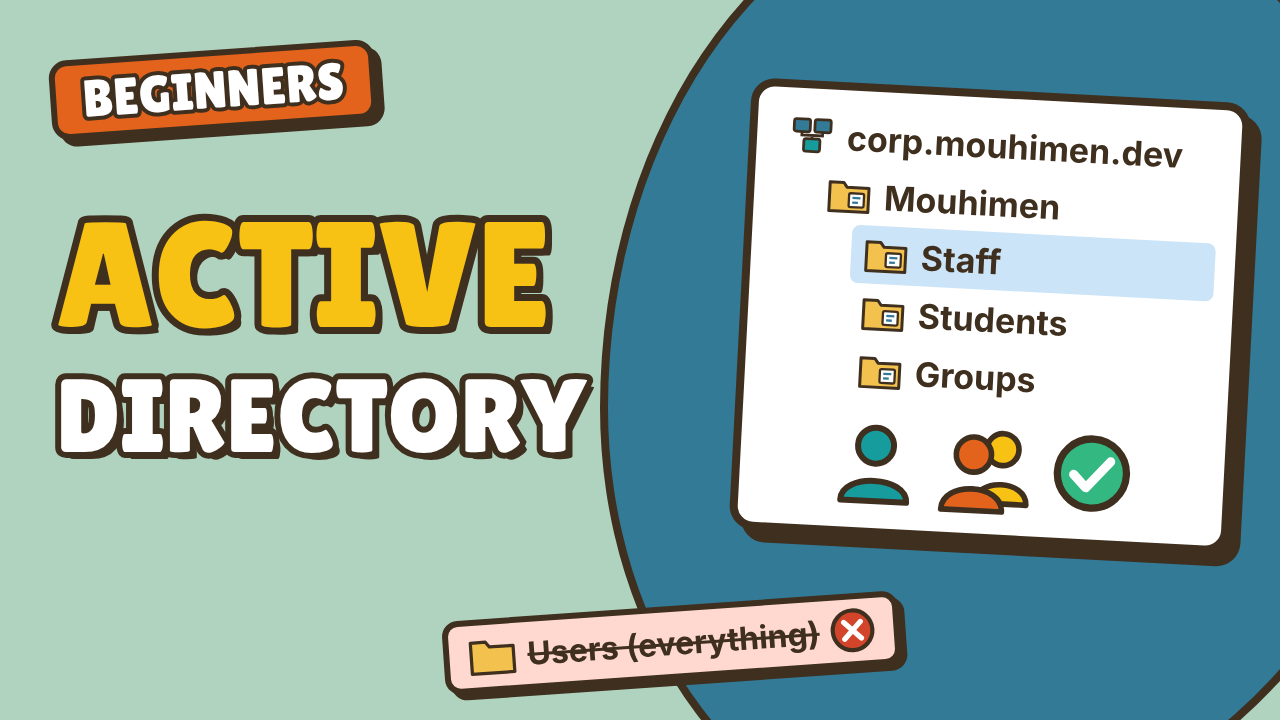
corp.mouhimen.dev - OU Mouhimen HQ with two child OUs: Staff (user Abd Almouhimen Shamout,
abd.shamout) and Workstations (PC01)
Keep people and computers in separate OUs. You’ll see why in error 4. If OUs are new to you, start with my Active Directory tutorial for beginners.
How a GPO works
- A GPO only applies once it’s linked to a site, the domain or an OU. Then it applies to the users and computers inside that container.
- Every GPO has two halves. Computer Configuration applies to the machine at startup. User Configuration applies to the person at sign-in.
- Processing order: Local, then Site, then Domain, then OU. The last one applied wins, so the GPO closest to the object wins. Inside one OU, link order 1 has the highest precedence.
Create and link a GPO
- Press
Win + R, typegpmc.mscand press Enter. - Expand Forest > Domains > corp.mouhimen.dev > Mouhimen HQ.
- Right-click Workstations > Create a GPO in this domain, and Link it here…
- Name it
WKS - Screen Lock.
My naming tip: start every name with where it’s linked (WKS - for workstations, STAFF - for staff), then what it does. A year from now you’ll still know what each GPO is for.
GPO 1: password and lockout policy
This is the one exception to the naming rule. For domain accounts, password and lockout rules only work at the domain level, so edit the Default Domain Policy.
Path: Computer Configuration > Policies > Windows Settings > Security Settings > Account Policies
| Setting | Value |
|---|---|
| Password Policy > Minimum password length | 14 characters |
| Account Lockout Policy > Account lockout threshold | 10 invalid logon attempts |
| Lockout duration / reset counter | Accept the suggested 15 minutes |
Why 10 and not 3? Three locks people out every Monday morning. Ten still stops password guessing. (That’s my recommendation for a small office, not a Microsoft default.)
GPO 2: automatic screen lock
Edit WKS - Screen Lock (linked to Workstations).
Path: Computer Configuration > Policies > Windows Settings > Security Settings > Local Policies > Security Options
- Interactive logon: Machine inactivity limit =
900seconds
That’s 15 minutes of no activity, then the PC locks itself.
GPO 3: map an S: drive
Create STAFF - S Drive on the Staff OU. Drive maps live in Preferences, under User Configuration, because the drive belongs to the user.
Path: User Configuration > Preferences > Windows Settings > Drive Maps > right-click > New > Mapped Drive
| Field | Value |
|---|---|
| Action | Update |
| Location | \\DC01\Shared |
| Reconnect | Ticked |
| Label as | Shared |
| Drive letter | Use: S |
Always pick one fixed letter. The Use first available option can remove drives your users mapped themselves.
GPO 4: block USB sticks
Create WKS - Block USB on Workstations.
Path: Computer Configuration > Policies > Administrative Templates > System > Removable Storage Access
- All Removable Storage classes: Deny all access = Enabled
A USB stick won’t open, but the USB mouse and keyboard still work. Company data can’t walk out of the office in a pocket.
GPO 5: lock Control Panel for staff
Create STAFF - No Control Panel on Staff.
Path: User Configuration > Policies > Administrative Templates > Control Panel
- Prohibit access to Control Panel and PC settings = Enabled
Link it to staff, not to IT. Your own admin account should never sit in that OU.
Prove it works: gpupdate and gpresult
By default, PCs check for Group Policy changes every 90 minutes, plus a random delay of up to 30 minutes (domain controllers every 5 minutes). You don’t have to wait. On PC01:
gpupdate /force
Then sign out and back in, because drive maps apply at sign-in. You should see the S: drive, a restrictions message when you open Control Panel, and “Access is denied” on a USB stick.
Now the command that proves it. In an admin Command Prompt:
gpresult /r
Under Applied Group Policy Objects you’ll see each GPO by name. For a full report:
gpresult /h C:\gp-report.html
4 Group Policy errors and how to fix them
1. The password policy doesn’t change
You linked a password GPO to an OU. For domain accounts, that’s ignored. Put the settings in the Default Domain Policy. If one group needs stricter rules, use a fine-grained password policy instead.
2. A GPO filtered to one group doesn’t apply at all
You removed Authenticated Users from Security Filtering. Since the 2016 security update MS16-072, the computer also needs read access to the GPO. Fix: GPO > Delegation tab > Add > Domain Computers > Read.
3. “Computer policy could not be updated successfully”
Most of the time the PC’s DNS points at the router or at 8.8.8.8, so it can’t find the domain controller. Point the PC’s DNS at your DC only, exactly as in my AD Domain Services guide.
4. The GPO does nothing at all
Its User Configuration settings are linked to an OU that only holds computers. User Configuration follows the user object; Computer Configuration follows the computer object. Link user GPOs where your users live. For a kiosk or classroom PC where user settings must follow the computer, look up loopback processing.
My habit: back up every GPO first
Before you change any GPO, back them all up in PowerShell:
Backup-GPO -All -Path C:\GPO-Backups
If a change breaks something, put it back in seconds:
Restore-GPO -Name "WKS - Screen Lock" -Path C:\GPO-Backups
Recap
- A GPO only works once it’s linked.
- Password rules go on the domain; everything else on an OU.
- User settings follow users, computer settings follow computers.
Next in IT Admin Fix (Friday 4 December): PowerShell for Beginners, bulk create AD users from a CSV, straight into the Staff OU from this guide.
FAQ
What is a GPO in Active Directory?
A Group Policy Object is a set of computer and user settings stored on the domain controller. Once you link it to a site, the domain or an OU, every computer and user in that container applies it automatically.
How often does Group Policy refresh?
PCs refresh every 90 minutes plus a random offset of up to 30 minutes. Domain controllers refresh every 5 minutes. Run gpupdate /force to apply changes right away.
Why is my GPO not applying?
Check gpresult /r first. The usual causes are: user settings linked to an OU with only computers, Authenticated Users removed without giving Domain Computers Read, or the PC using the wrong DNS server.
Can I set a password policy on an OU?
Not for domain accounts. Password and lockout settings only take effect from a GPO linked at the domain level. For different rules per group, use a fine-grained password policy.
What’s the difference between gpupdate and gpresult?
gpupdate /force applies the latest policies now. gpresult /r shows which policies were actually applied, so you can prove a GPO works.
Watch next
- Active Directory tutorial for beginners: users, groups and OUs, the base of every GPO.
- Active Directory Domain Services: build a DC on Server 2025, the lab used here.
Honest note: the screens in the video are simplified look-alikes built for the video, not screen recordings. Names and IPs are lab samples. The voice-over is made with ElevenLabs. Some links are affiliate links; I may earn a commission at no extra cost to you.
Which GPO should I cover next? Tell me in the comments.

Leave a Reply